


Get it Here or from Community Scripts / Meta Repo
Do you have a stack of files, possibly not well-organized, possibly of different filetypes that you need to move into Hudu? Don't want to waste time converting them to a searchable/editable format?
This script is a lifesaver and can help you achieve high quality documentation without the headache. It's designed to be easy-to-use, have defaults, and flexibility for any directory structure. Any accessible mapped drive containing documents is your oyster.
All files are left completely intact and conversion operations only use temporary copies of source files. Original source files are by-default attached to article for reference and posterity.
What it can do
Generates Hudu articles from many different types of source material (directories, files, PDFs, Office docs, HTML pages).
Converts hundreds of document formats on-the-fly, extracts and places images, and keeps the original.
Allows for use with any existing Sharepoint, OneDrive, or Network share as-is--Just filter-in or filter-out the types of files you want in Hudu.
Non-Document files can be uploaded as-is and attributed to an article, so long as you don't explicitly omit that filetype.
Getting Started
You'll need these prerequisites
Hudu Instance and API key (version 2.39.5 or newer)
Powershell 7.5.1 or newer (Windows)
Libreoffice
(if you don't have LibreOffice, you'll be prompted to install the newest stable version when running the script)
A Directory containing documents that you want in Hudu
Running
Running is easy. Once you've downloaded your script and navigated to this project's directory in Powershell, you can run it! There is one required parameter, /TargetDocumentDir, but like all the other parameters, if we need to know, we'll prompt!

Parameter
Description
TargetDocumentDir
Directory containing the articles to process.
DocConversionTempDir
Temporary directory for PDF/HTML/LibreOffice conversions.
filter
Case-insensitive file or directory filter. Supports wildcards (e.g., *.pdf, keep*).
DestinationStrategy
Determines how articles are added to Hudu: GlobalKb, SameCompany, or VariousCompanies. Optional; prompts if omitted.
SourceStrategy
Controls recursion: use Recurse to search subdirectories; omit to stay at a single level (will prompt if missing).
IncludeDirectories
Whether to treat directories as a resource. Recommended when not using recursive source strategy.
IncludeOriginals
Include original documents in the article along with converted versions. Default: true.
MaxItems
Maximum number of files/directories allowed in a batch. Default: 500.
MaxTotalBytes
Maximum allowed total size of incoming documents. Default: 5 GB.
MaxDepth
Maximum recursion depth when using Recurse. Default: 5 levels.
*NOTE- If you elect to include directories as source-objects with includeDirectories, SourceStrategy will be set to 'TopLevel' to prevent duplication.
Here are some handy usage examples:
Say I have some mission-critical .docx files on our Sharepoint Drive that we need to add to hudu, they are in various folders, sometimes pretty deeply-nested.
. .\Files-For-Hudu.ps1 -TargetDocumentDir V:\2025\Q1 -SourceStrategy Recurse -Filter "*.docx" -MaxDepth 10We have a bunch of various files on our Drive-Mapped Azure Blob storage that were never well-organized. There are in less-common formats like "csv",".rtf", ".txt", ".md", ".wpd",".xls", ".xlsx", and we want them in Hudu!
. .\Files-For-Hudu.ps1 -TargetDocumentDir B:\Company\Billing-Exceptions
But what can I expect to see in Hudu when uploading and converting these documents?
PDF, Richtext, Document formats convert pretty nicely into native HTML Hudu KBs.
Sometimes there are minor changes to the way they look, especially if those documents had embedded fonts. Largely, they should look pretty good and will be fully searchable and editable if any adjustments are needed.

What about plaintext files, Markdown, CSV, what do those look like?
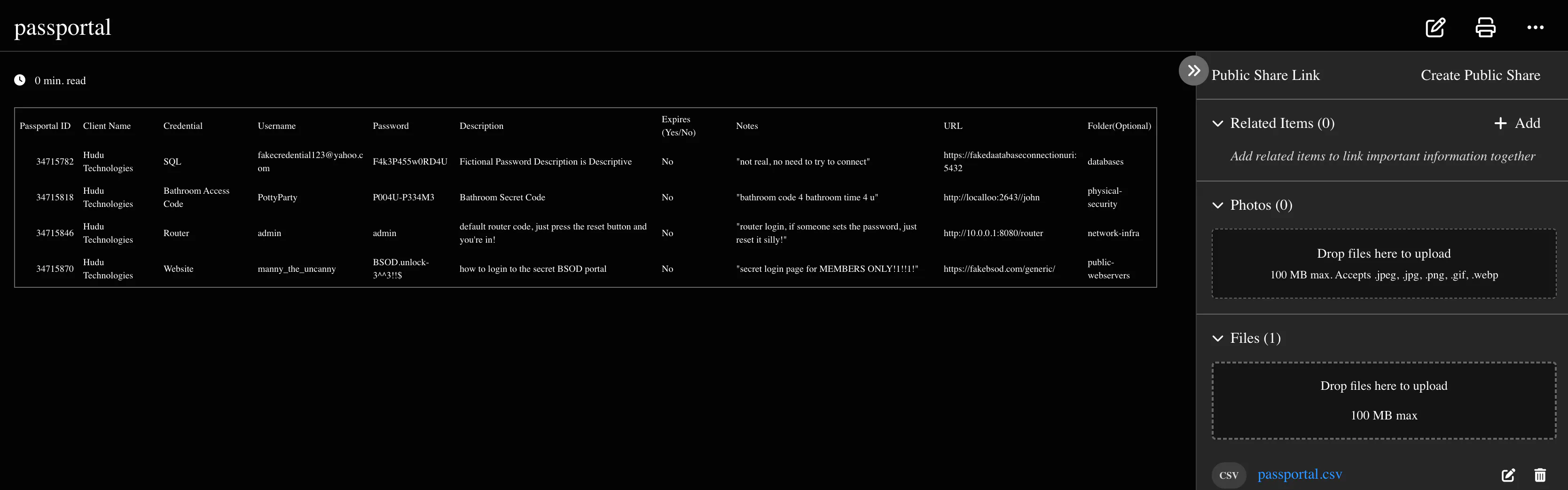
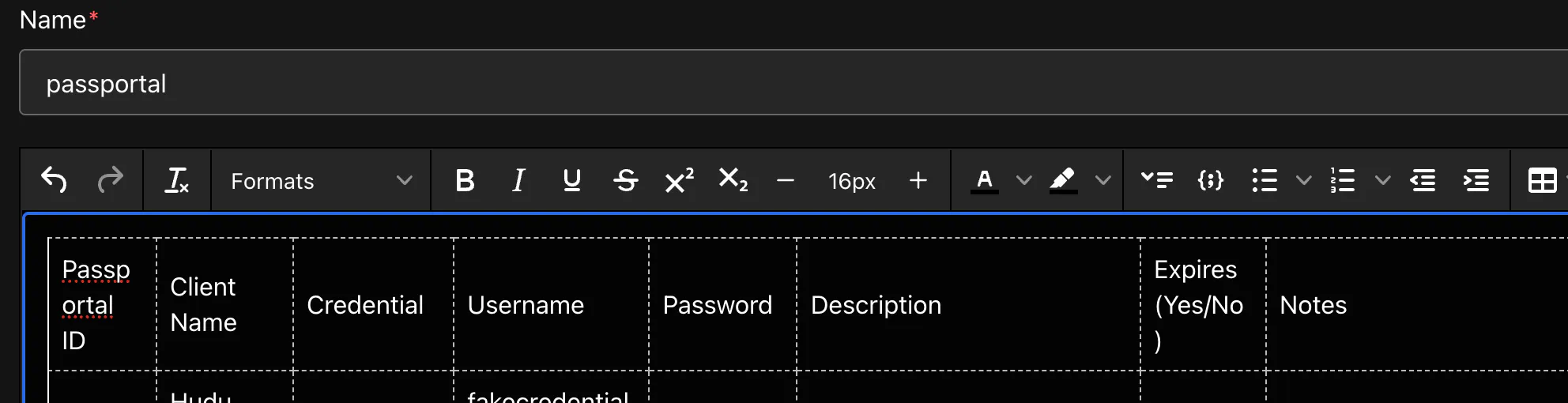
CSV and TSV files are rendered into an HTML table. If you need to, you can easily edit the article to adjust row / column spacings.
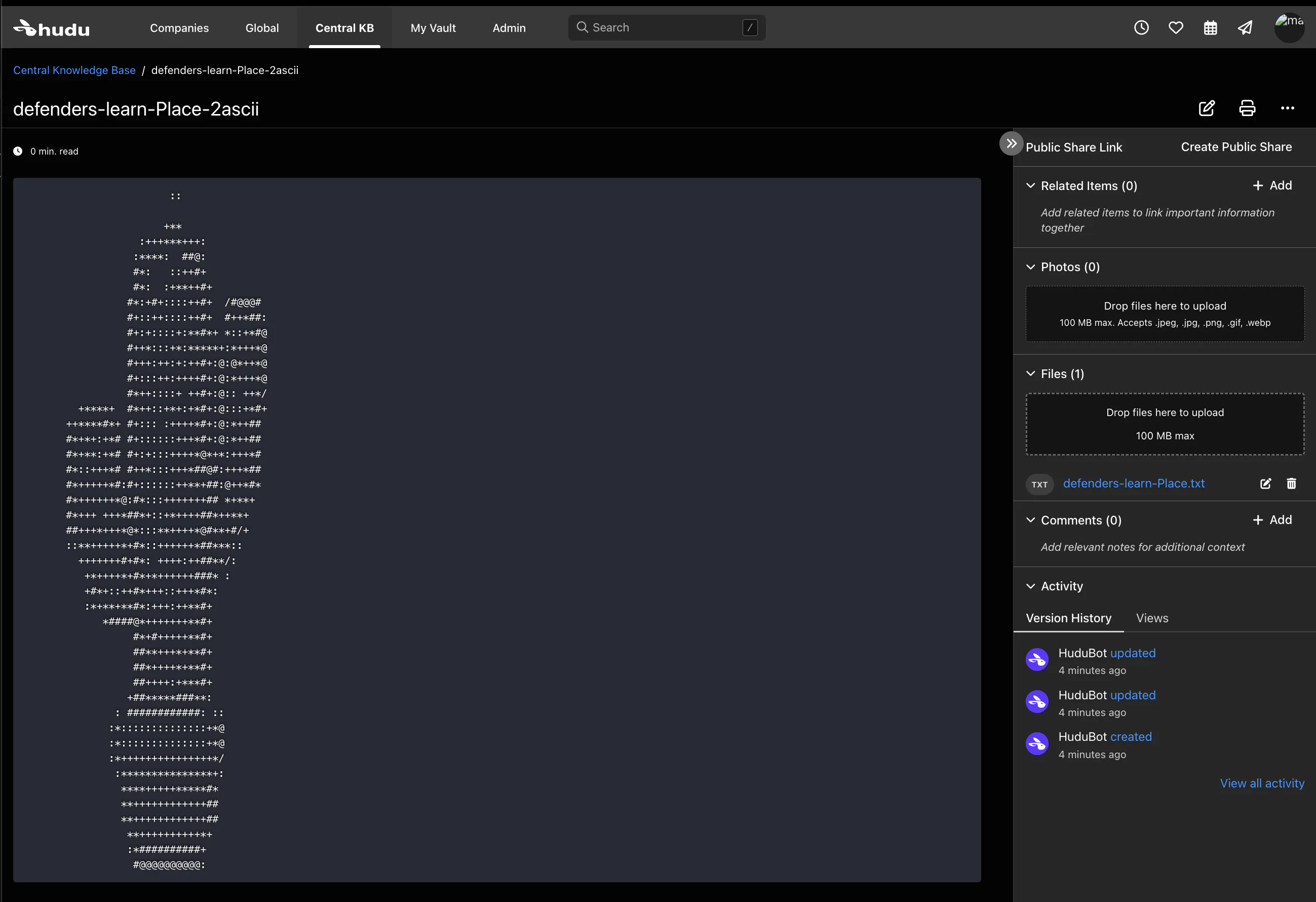
Plaintext and Markdown are pretty basic after converting. Often times, they will be placed into a codeblock
What about document formats that cannot be converted?

If they are less than 100mb in size, they can be uploaded as an attachment and a placeholder article is created for reference and searching for said filename.
Is there a way to check the results after a Sync/Migration?
Indeed there is! You'll have a json object in your project directory that includes a timestamp and all the details of your batch conversion / upload job.

Advanced Usage - Configuring Filetype Preferences
To configure your preferred filetypes to target for conversion, to ignore, or to otherwise upload as attachment, you can add to or edit the extension lists/arrays in files-config.ps1.
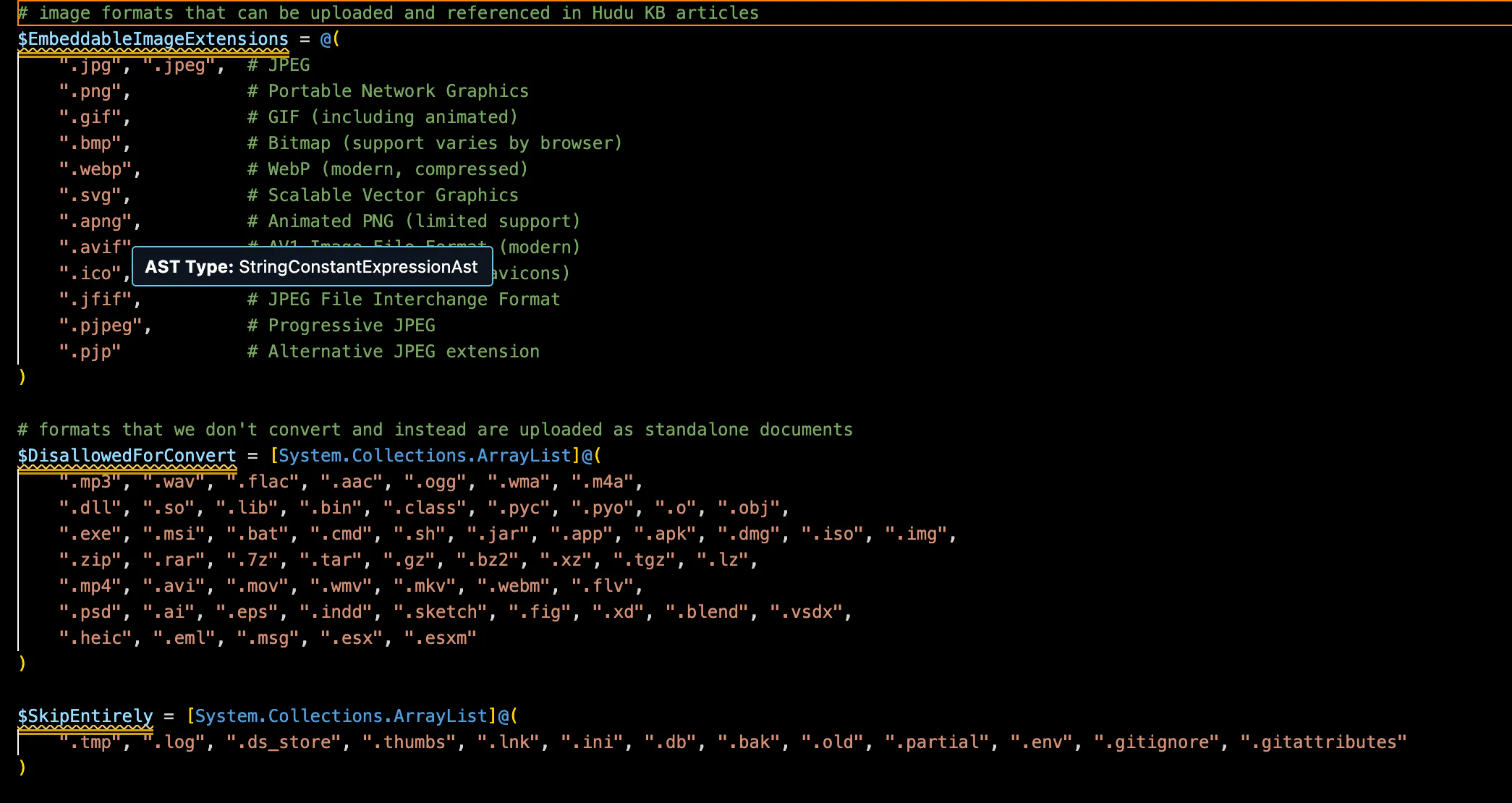
Embeddable images, the first array includes possible image types that could be included in an article or extracted from a document. All of these are pretty safe to leave alone, though you are not likely to encounter some of the less-common ones.
DisallowedForConvert array includes the stuff that WE KNOW is not a readable document. These can, however, be attached to articles and included as uploads
SkipEntirely is self-explanatory - we don't want to touch these!
That's it!
If you have any issues, suggestions, or questions, feel free to drop us a comment! We're always looking for ways to make documentation better for everyone!
If you need help with migrations, you can email our team at [email protected].