


Move assets from one Hudu asset layout to another with a guided GUI workflow. The tool helps you map fields, fill required values, combine multiple source fields with `Smoosh`, handle merge-on-match behavior, and relink supported related objects.
https://github.com/Hudu-Technologies-Inc/Community-Scripts/tree/main/Migrations/Migrating-Assets-Between-Layouts
Quick summary
Run
HuduAssetLayoutTransfer.exeChoose the source and destination layouts
Pick merge behavior for matching assets
Review each destination field in the mapping wizard
Confirm the final plan and run the transfer
What This Tool Does
- Transfers asset data from one Hudu layout into another
- Supports field-by-field mapping through the GUI
- Lets you use constant values for required destination fields
- Supports SMOOSH to combine multiple source fields into one destination field
- Can normalize or strip HTML from rich text when needed
- Supports structured AddressData destination mapping
- Supports ListSelect destination mapping, including optional creation of missing list items
- Can merge or skip when a likely matching asset already exists in the destination
- Relinks supported related records such as passwords, uploads, articles, and photos
What Gets Carried Over
- Any source asset fields you choose to map
- AssetTag relations, converted into direct relations where applicable
- Related passwords
- Related procedures
- Related articles
- Attached uploads
- Public photos
- Related photos *
*Photo relinking requires Hudu 2.41.0 or later.
Requirements
- PowerShell 7.5.1 or later on Windows PC
- A Hudu base URL
- A Hudu API key
- An existing source layout and destination layout
Quick Start
1. Launch the tool
Run HuduAssetLayoutTransfer.exe.
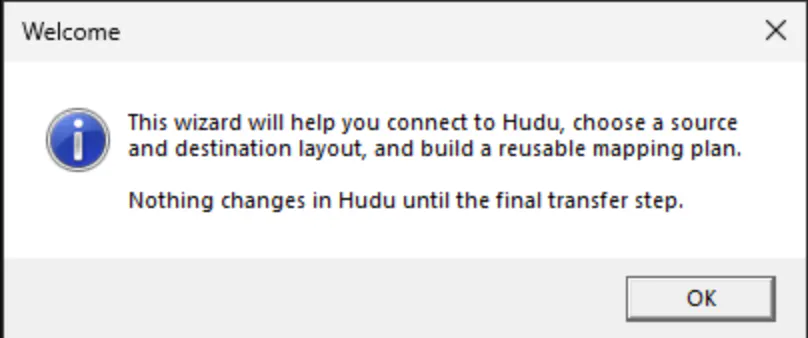
The tool opens a GUI window and a terminal window. The terminal is mainly there for logging and troubleshooting.
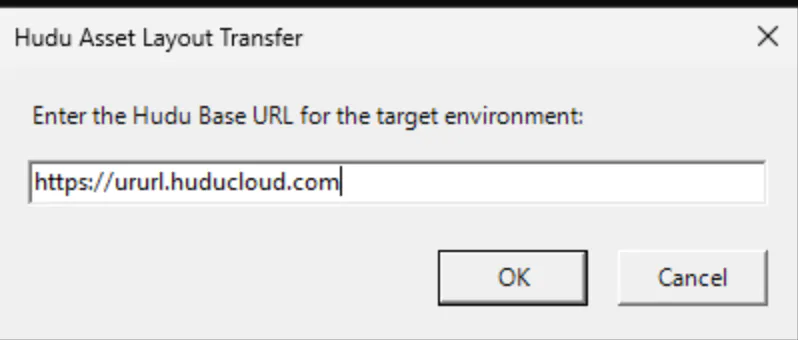
2. Enter your Hudu connection details
Provide your Hudu URL and API key.
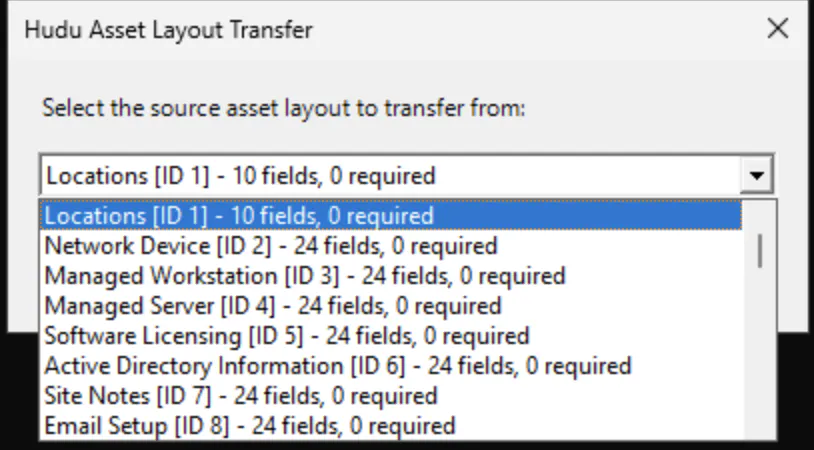
3. Choose the source and destination layouts
Pick the layout you are moving from and the layout you are moving to.
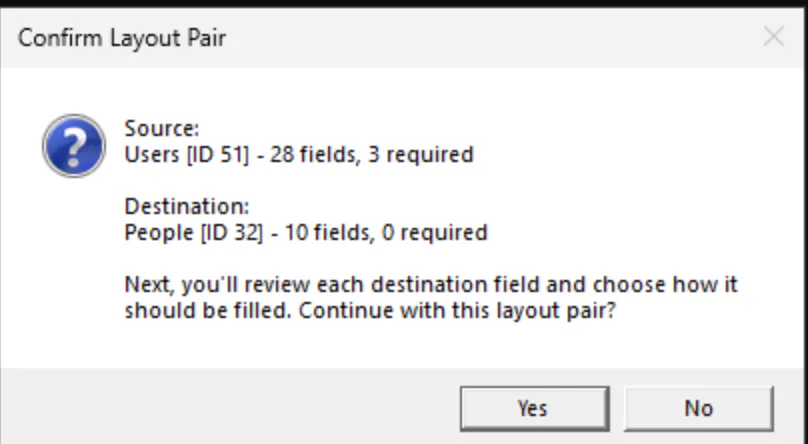
You will then get a confirmation step to review or change the selection.
4. Choose merge behavior for matches
If an incoming source asset appears to match an existing destination asset, you can choose how the tool should behave.
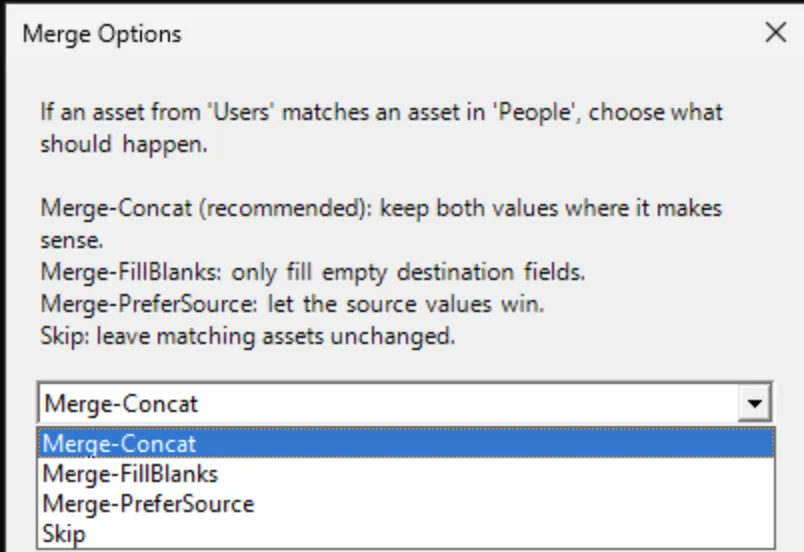
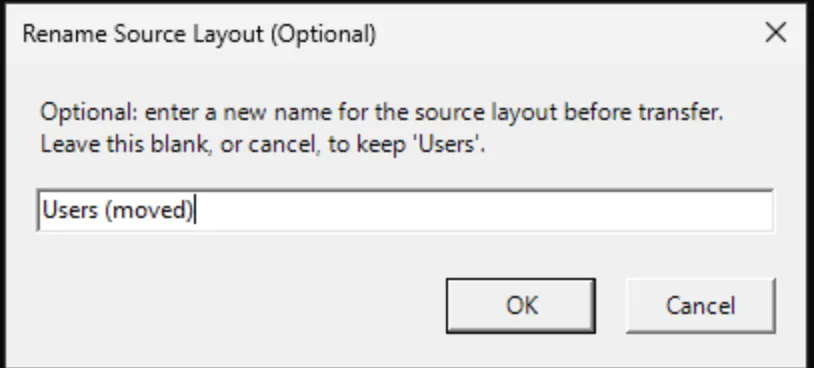
You can also optionally rename the source layout after the transfer is complete.
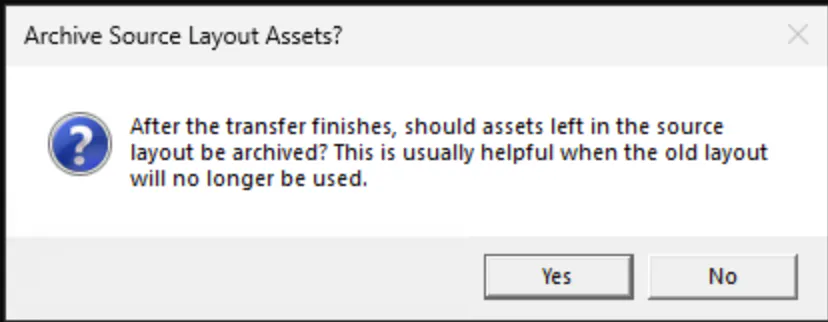
5. Decide whether to archive the original source assets
This is usually recommended once you are confident the transfer plan is correct.
6. Review field mappings
If the source and destination layouts already line up closely, the tool may offer a direct transfer path.

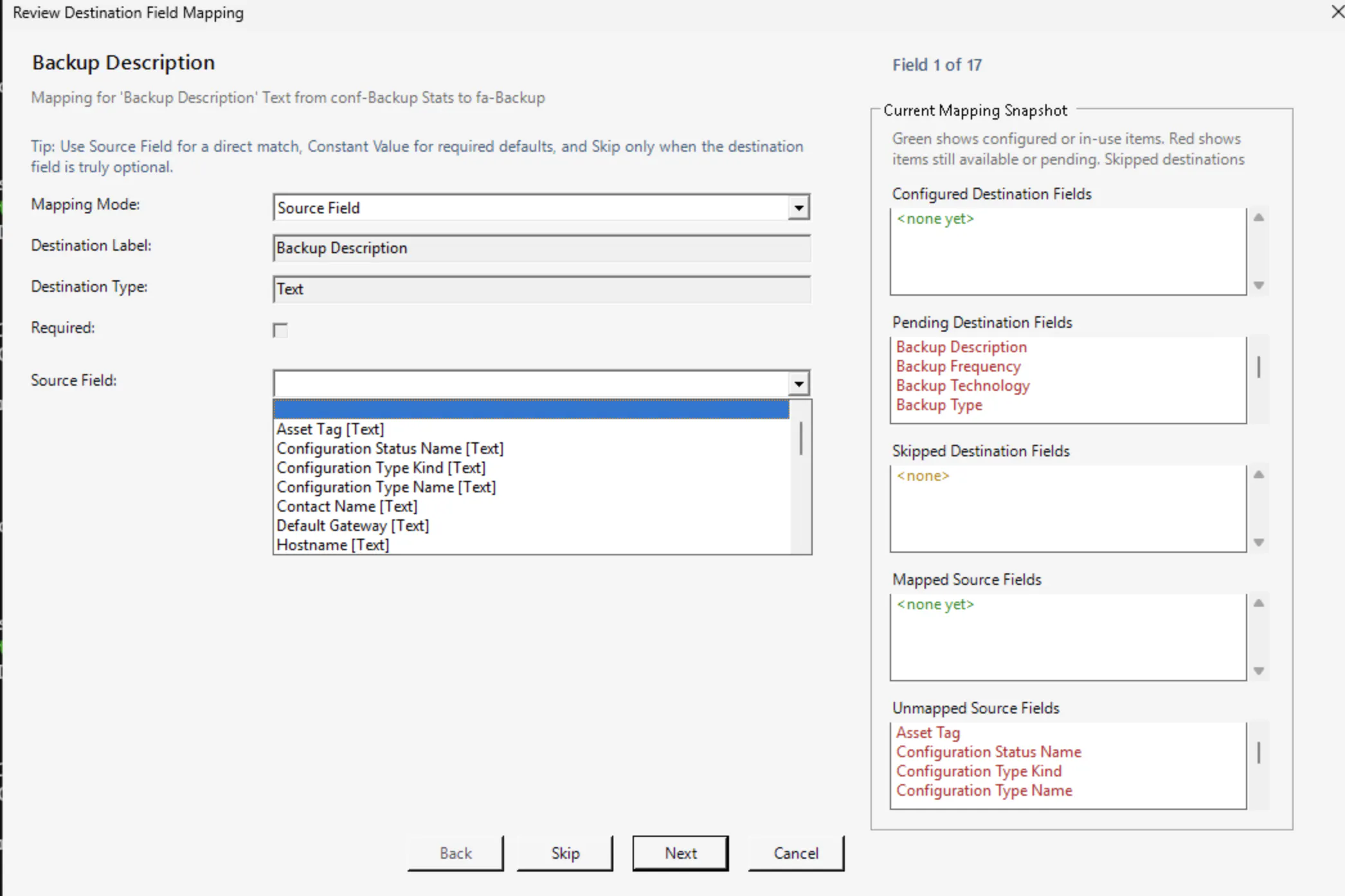
Otherwise, you will work through the field mapping wizard one destination field at a time.
Merge Modes
When a source asset appears to match a destination asset, choose one of these behaviors:
Merge-FillBlanks: destination wins; source only fills missing values
Merge-PreferSource: source wins; destination acts as fallback
Merge-Concat: keeps both values for text-like fields and chooses a winner for non-text fields
Skip: do not transfer the source asset if a match is found
Use Merge-Concat when you want to preserve both sets of notes or descriptive text. Use Merge-FillBlanks when the destination is already your source of truth.
Field Mapping Workflow
Each destination field is reviewed in the GUI. For every field, choose one mapping mode:
Source Field: map from one source field
Constant Value: always write the same literal value
SMOOSH: combine multiple source fields into one destination field
Skip: leave the destination field unmapped
The mapping editor also shows a live snapshot of:
Configured destination fields
Pending destination fields
Skipped destination fields
Mapped source fields
Unmapped source fields
Use Back and Next to move through the review loop. Back discards any in-progress edits for the current field unless that field was already saved earlier.
Standard Source Mapping
This is the most common path: pick a source field and optionally enable Strip HTML.
Use Strip HTML when moving from rich text or embed-like source fields into plain text destination fields.
Constant Mapping
Use this when a destination field should always receive the same value.
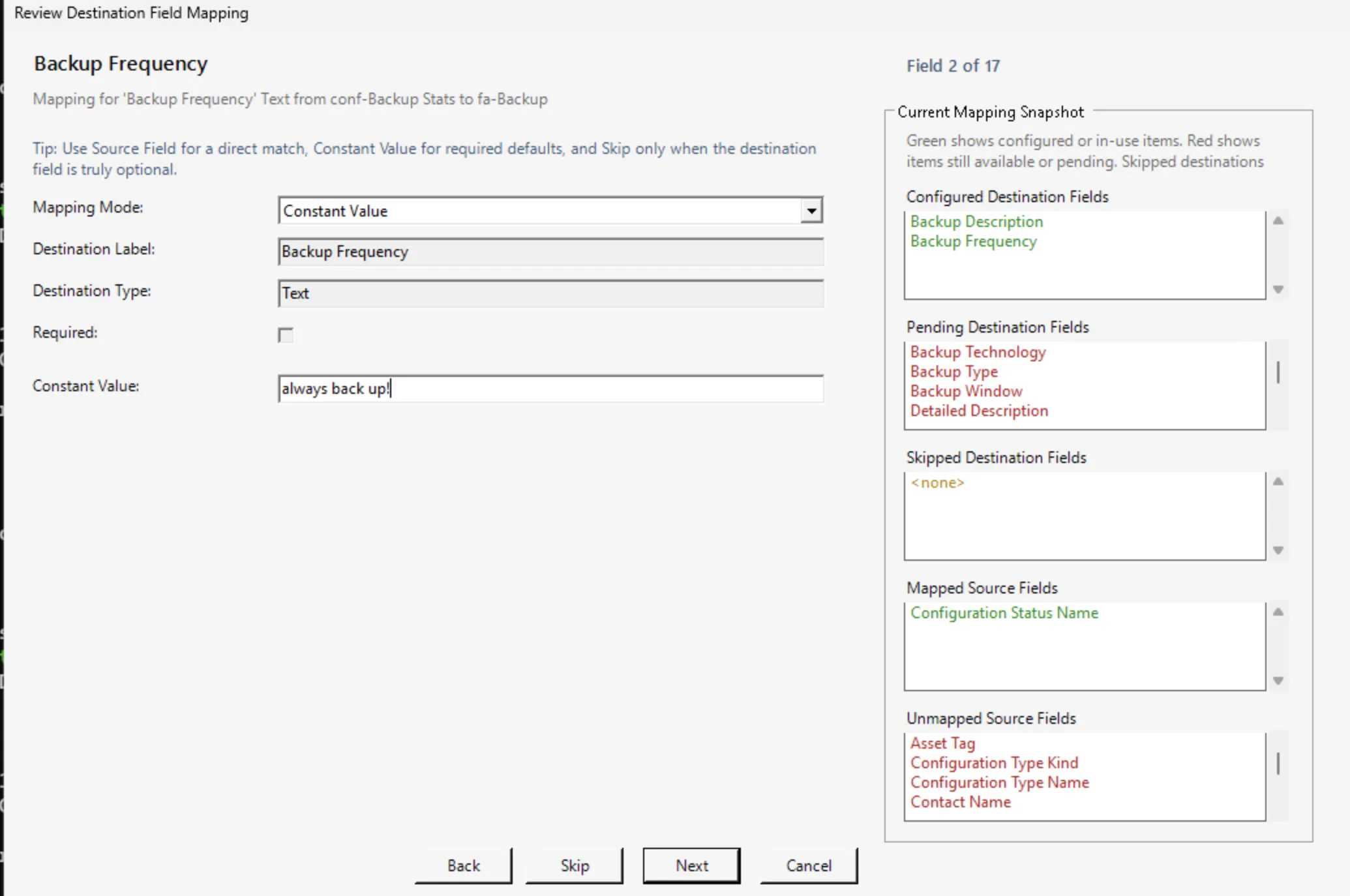
This is especially useful for required destination fields that have no good source equivalent.
ListSelect Mapping
For ListSelect destination fields, choose a source field and define which source values should map to which destination list items.
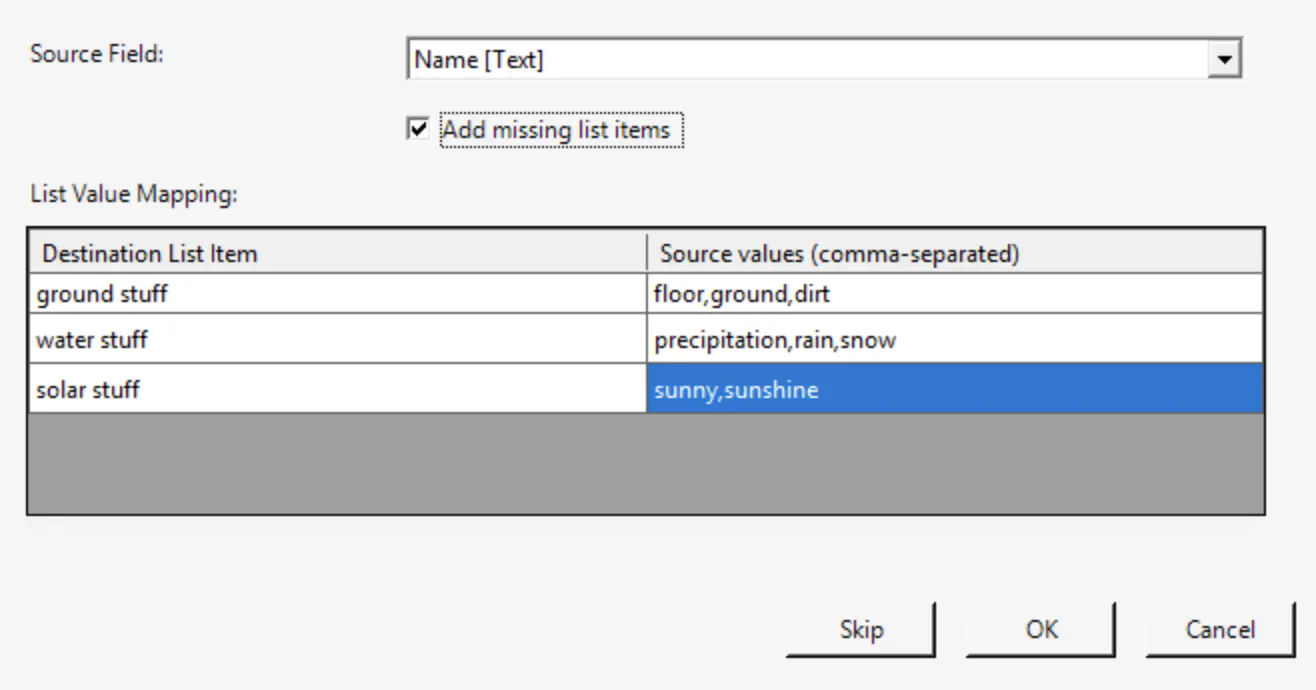
This is helpful when the source data is inconsistent and needs to be normalized into one controlled list.
Example:
Source values like floor, ground, or dirt can map to destination option ground stuff
Source values like sunny or sunshine can map to solar stuff
Matching is case-insensitive and uses first-match-wins behavior.
If the destination list may be missing values, enabling Add missing list items is usually the right choice.
AddressData Mapping
AddressData fields can be mapped by parts:
address_line_1address_line_2citystatezipcountry_name
The tool builds the destination address object only when at least one address component is present.
SMOOSH Mapping
SMOOSH lets you combine multiple source fields into one destination field. It is usually most useful for RichText, Heading, or other notes-style destinations.
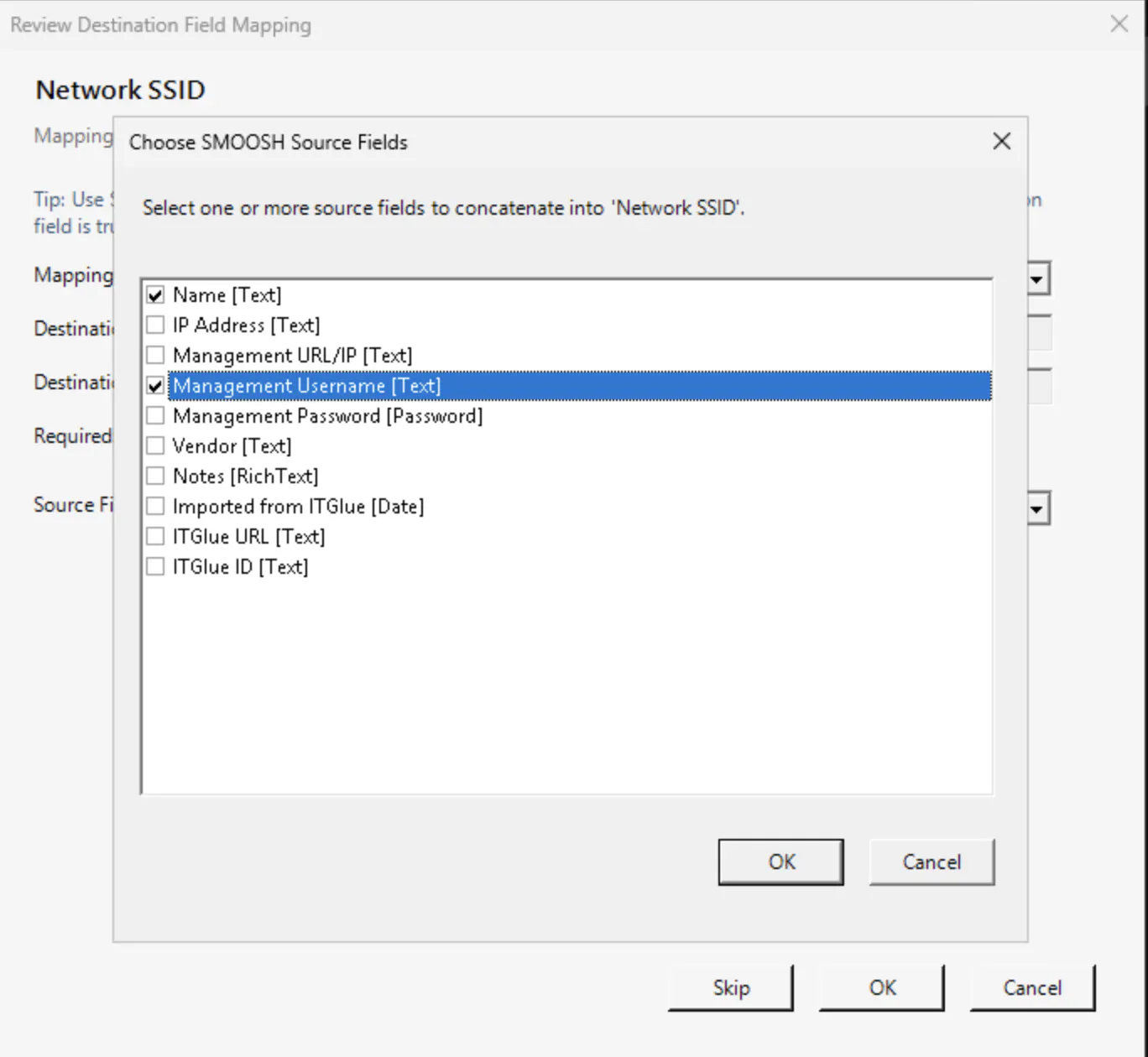
Example rich text output:
Serial Number:
9JD2NLAL4
Notes:
This is a good computer (link)
Example plain text output:
9JD2NLAL4; This is a good computer; John
https://huduurl.huducloud.com/a/computerslug
Per-Job Settings
After field mapping, the tool asks a few follow-up questions depending on how your plan is configured.
$includeblanksduringsmoosh (default - $false) -
Includes empty values when building SMOOSH output.
$includeLabelInSmooshedValues (default - $true)-
Prepends the source field label before each SMOOSHed value.
$excludeHTMLinSMOOSH (default - $false)-
Strips HTML and flattens SMOOSH output into cleaner plain text.
$includeRelationsForArchived (default - $true)
Preserves relations even when the related object is archived.
How Matching Works
Before creating a destination asset, the tool checks whether a likely match already exists.
A source asset is treated as a likely match when:
It belongs to the same company as a destination asset, and
The names are the same, or the destination name starts with or ends with the source name
Very short names are intentionally not matched too aggressively.
This matching logic helps prevent accidental duplicates while still allowing flexible merge behavior.
Review, Outputs, and Logs
Before the transfer runs, the tool shows a final summary of the mapping plan, including:
Direct mappings
Constants
SMOOSH target and source count
Skipped fields
Merge behavior
Archive preference
After the transfer, the tool writes a timestamped JSON results file such as:
transferresults_YYYYMMDD_HHMMSS.json
The console output also includes field-level and relation-level progress messages to help with troubleshooting.
Troubleshooting Tips
Plain text fields showing HTML
Enable Strip HTML on the specific field mapping, especially when the source field is RichText, Heading, or Embed-like content.
ListSelect values not landing where expected
Double-check the whenvalues mapping and remember that matching is case-insensitive and uses the first matching destination option.
Email fields look messy
Make sure the destination field is typed or labeled as an email field so the email cleanup logic can normalize the value correctly.
Address casing looks odd
The helper logic normalizes common US state names and country variants such as US, USA, and United States.
Tips
Prefer matching destination field types when possible
Use constants to satisfy required destination fields that have no good source value
Use SMOOSH for notes-style destinations rather than trying to cram several inputs into a single normal field
For plain text destinations, consider both Strip HTML and excludeHTMLinSMOOSH=$true
Start with a small test layout or a small company subset before running a large migration
---
Changelog
- v0.3 - Initial public draft of the layout-switching documentation, November 19, 2025
- v0.5 - Added merge-on-match options, February 23, 2026
- v0.6 - Added constant fallback values and combined relation handling on match, March 3, 2026
- v0.8 - Added password, photo, public photo, and upload reattribution, March 4, 2026
- v1.0 - Finalized GUI, added forward,back buttons, and field indicator panel.