


Want a way to create a standardized folder structure across all of your Client's KB sections?
Maybe you want a standard structure something like:
SOPs
Adminstrative
New User Setup
Network Request Forms
Troubleshooting
Network
Servers
Printers
Using Script to create a templated KB Folder Structure Across Companies
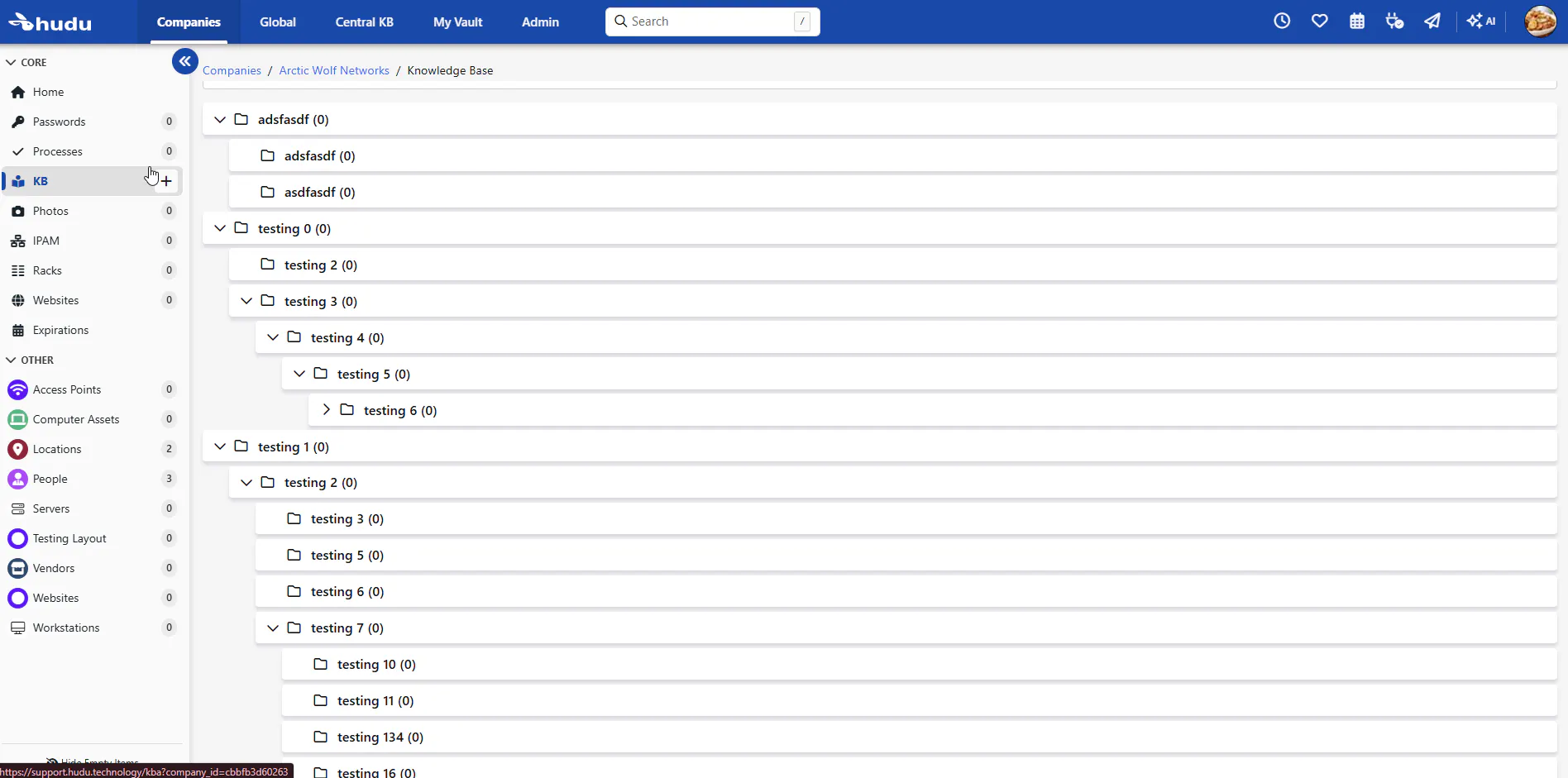
This guide shows what you will need:
How to create the Key Vault
How to create the two secrets
How to use them in your script
A minimal working example
============================================================
This script utilizes Azure Key Vault keys for security so it's not storing your actual API key information.
Create Azure Key Vault
1. Create the Azure Key Vault
Step 1 — Open Azure Portal
Go to: https://portal.azure.com
Search for Key Vaults → click Create.
Step 2 — Required fields
Project details:
Subscription: your subscription
Resource group: choose or create one
Instance details:
Key Vault name: must be unique (example: Hudu-Automation-Vault)
Region: pick your region
Pricing tier: Standard
Access Configuration:
Permission model: Role-based access control (RBAC) (Required for PowerShell scripts)
Networking:
Public access: Enabled
Allow all networks (for now)
Click Review + Create → Create.
2. Give Yourself Permission
In your new Key Vault → left menu → Access Control (IAM) Click Add → Add role assignment
Select role:
Key Vault Secrets User (read secrets only, recommended) OR
Key Vault Administrator (full access — only for setup)
Add your Azure user
Save
You now have permission to read secrets from PowerShell.
3. Create the Two Required Secrets
Inside your Key Vault → Secrets → Generate/Import.
Secret #1 — Hudu API Key
Name: HuduAPIKey
Value: paste the API key from Hudu Path in Hudu: Admin → API Keys
Click Create.
Secret #2 — HuduBaseURL
Name: HuduBaseURL
Value example: https://docs.yourcompany.com
(Both work — the script normalizes it.)
Click Create.
Run the Script
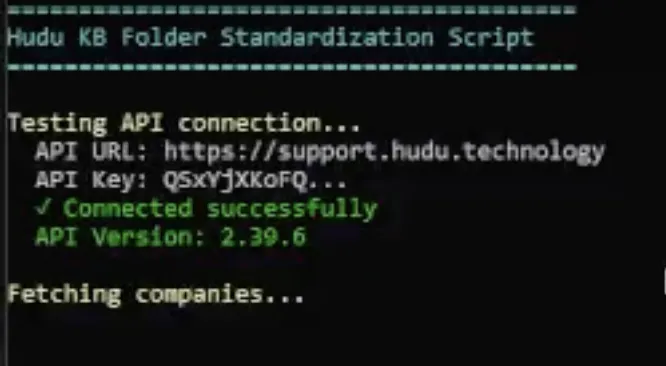
4. Use the Script (Clean Version)
Enter your Azure Vault Key and Hudu URL at the top of the script before running. Select either options 1 or 2 after company listings.
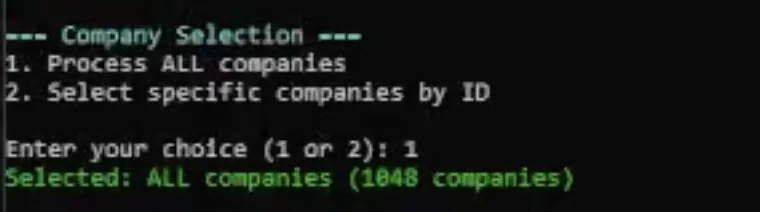
Option 1 will apply your folder creation to all companies. Option 2 will apply your folder creation to the company IDs you enter.
If you select option to please format your IDs as follow: 1,2,4,5,etc
How to create folders:
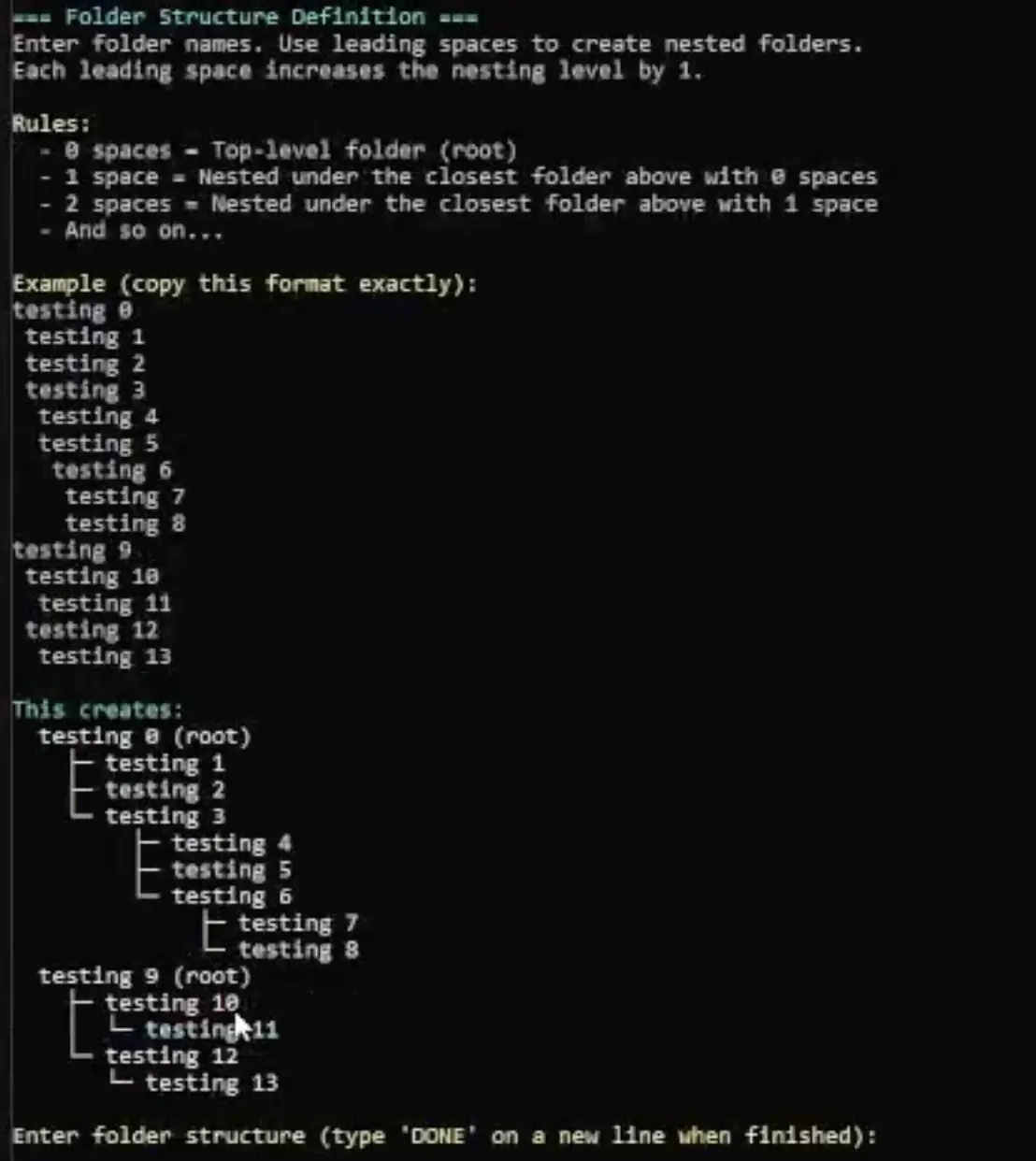
Here's an example of what you would type:
testing 0
 testing 1
 testing 2
 testing 3
  testing 4
  testing 5
   testing 6
    testing 7
    testing 8
testing 9
 testing 10
  testing 11
This creates the following structure:
testing 0 (root)
testing 1
testing 2
testing 3
testing 4
testing 5
testing 6
testing 7
testing 8
When done follow confirmation messages, and accept the creation.
The script will then create the folders, and silently remove any credentials used(API, Domain, Azure Secrets, etc).
You can view the script here: