Have you ever wanted to visualize all your networks in Hudu as an interactive network map?
Well, this makes doing so easy, customizable, and effortless! While fairly basic in design, it can make things much easier for our friends to conceptualize a network's topography.
An article is either created or updated (if it already exists) for each network described in each company. A Highest-Level / overview network will also be created, if applicable.
⚙ Setup
Setup is pretty easy. You have various customization options, but the meat and bones of what is needed is pretty simple.
1️⃣ Run Once
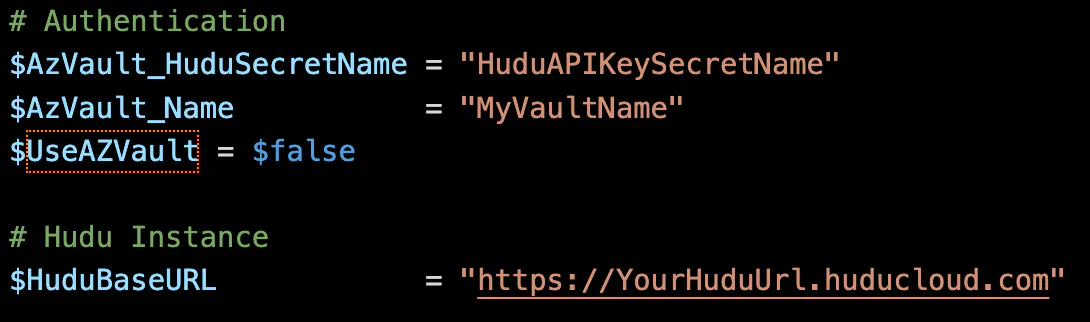
To run once or to test it out, you'll want to make sure that your $HuduBaseURL is set. Interactive use doesn't need a secrets provider, so you will be asked for your Hudu API key when running in this fashion.

📆 Run on a schedule
If you'd prefer that this runs on a schedule or non-interactively to always give you the most up-to-date network maps, it's recommended that you use an Azure KeyVault for storing your Hudu API key. To enable this, you'll need to make sure $UseAZVault is set to $true, as well as setting your KeyVault name and Hudu API Key secret name. Also, you'll still want to make sure your $HuduBaseURL value is set.
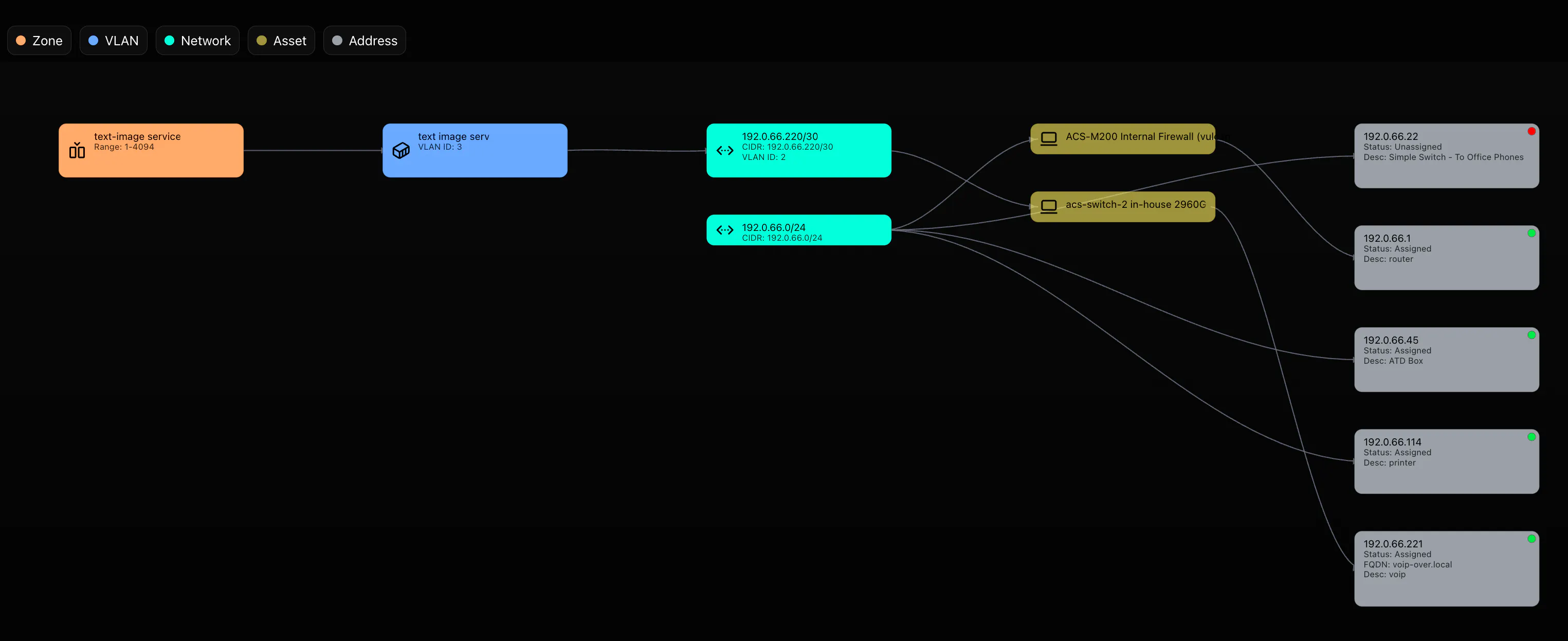
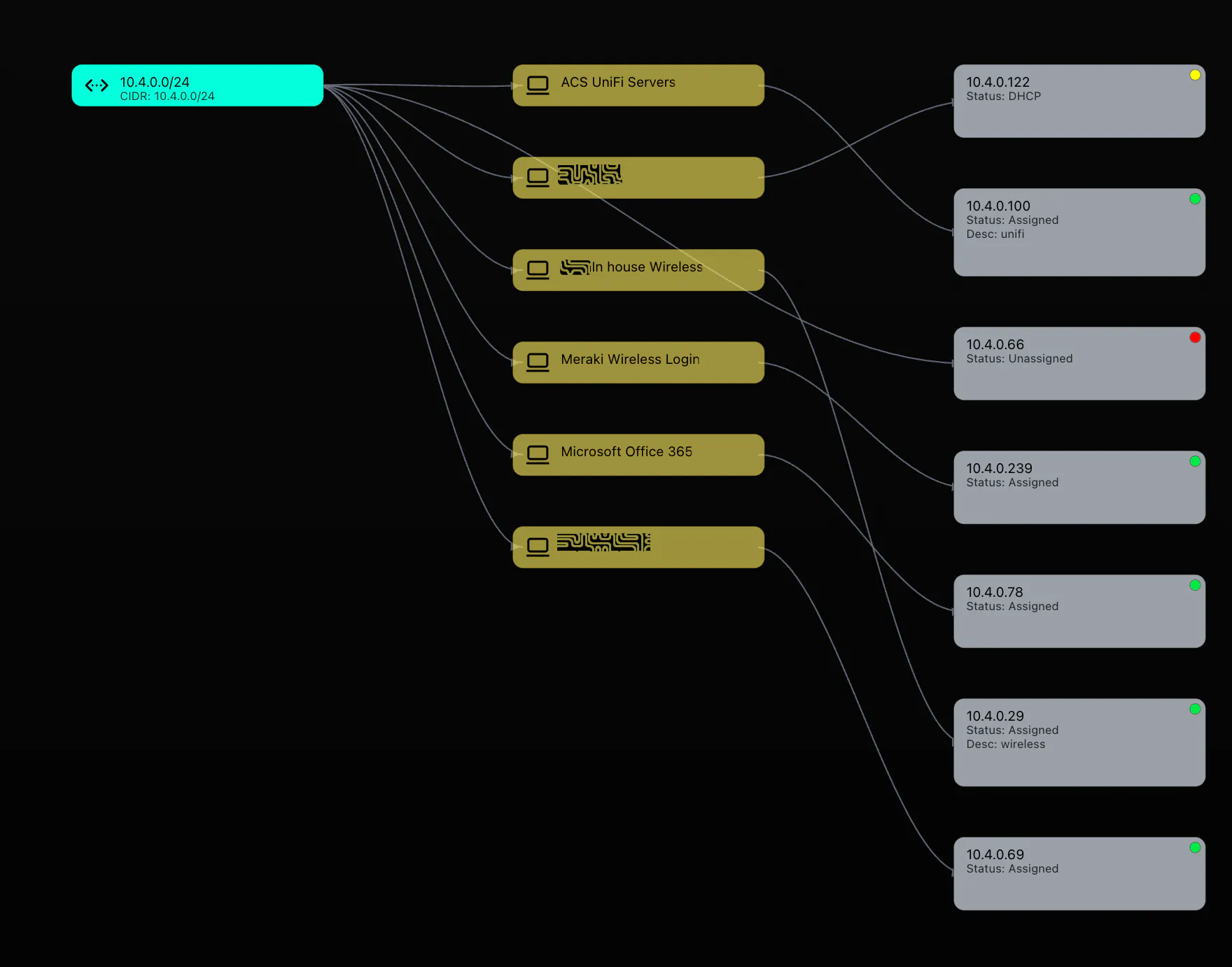
Each entity in a given network matrix is clickable and drills into the Hudu record for that item.
Main Entities Mapped:
VLANs and Zones are in the leftmost two columns (Blue/Orange)
Networks are in the center column (Green)
Linked/Associated assets are pulled in (Yellow)
IP Addresses are rightmost, tied to asset, or directly linked to network (Grey)
WAN Networks and Public IP Ranges/Blocks are supported here. Really, anything that is IPV4 is supported!

The colors used for both entity types and status indicators can be changed. For example, if you have a lot of asset assignments and you want to see the lines/Bézier curves that are behind entities, you can assign transparency to that object type.
📝 Customizations
ℹ️ Customization + Options - Info to Display
In addition to customizing colors for certain entity types or status types, there are some items that can be changed to show or not show certain information based on entity type. Generally speaking, there's plenty of room for details, however.
$OpenLinksInNewWindow = $false # Open links to assets, networks, vlans, zones, or addresses in new window or same window

$IncludeExtendedNetworkMeta = $true #Show 'Type','LocationId','Description','VLAN ID' in Networks

$IncludeExtendedAssetMeta = $true # Show 'Name','Manufacturer','Model','Serial' Properties in Assets

$IncludeAddressMeta = $true  # Show 'Status','FQDN','Description' properties in Address

$ShowDetails = $true # Add additional relationships and entity details during page generation

$CurvyEdges = $true # Use Bézier curves or straight lines when drawing relationship lines

$SaveHTML=$false # Save a copy of network HTML to local directory
🎨 Customization + Options - Palette & Colors
To customize your color palette/scheme, you can simply replace any of the reference colors in this section. Some of these may be subsequently referenced in the $ColorByStatus or $ColorByType lookup tables, just something to take note of.
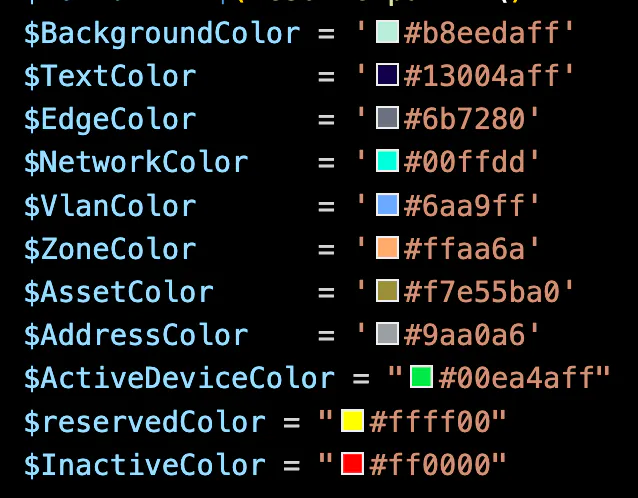
✳️ Customization + Options - Icons
To change your icon set or to assign other entity types an icon, you can modify this list, below, $AvailableIcons. It comes preloaded with some basic icons from Lucide.dev (MIT Liscense). It's recommended to use SVG data URI for these for more flexible scaling, but you can also use PNG, JPG images if you change the 'type' to the correct extension (omit the dot).
Alternatively, if you have an image/svg as an Upload object in Hudu, you can just set the UploadID to that object's ID, which might be easier.
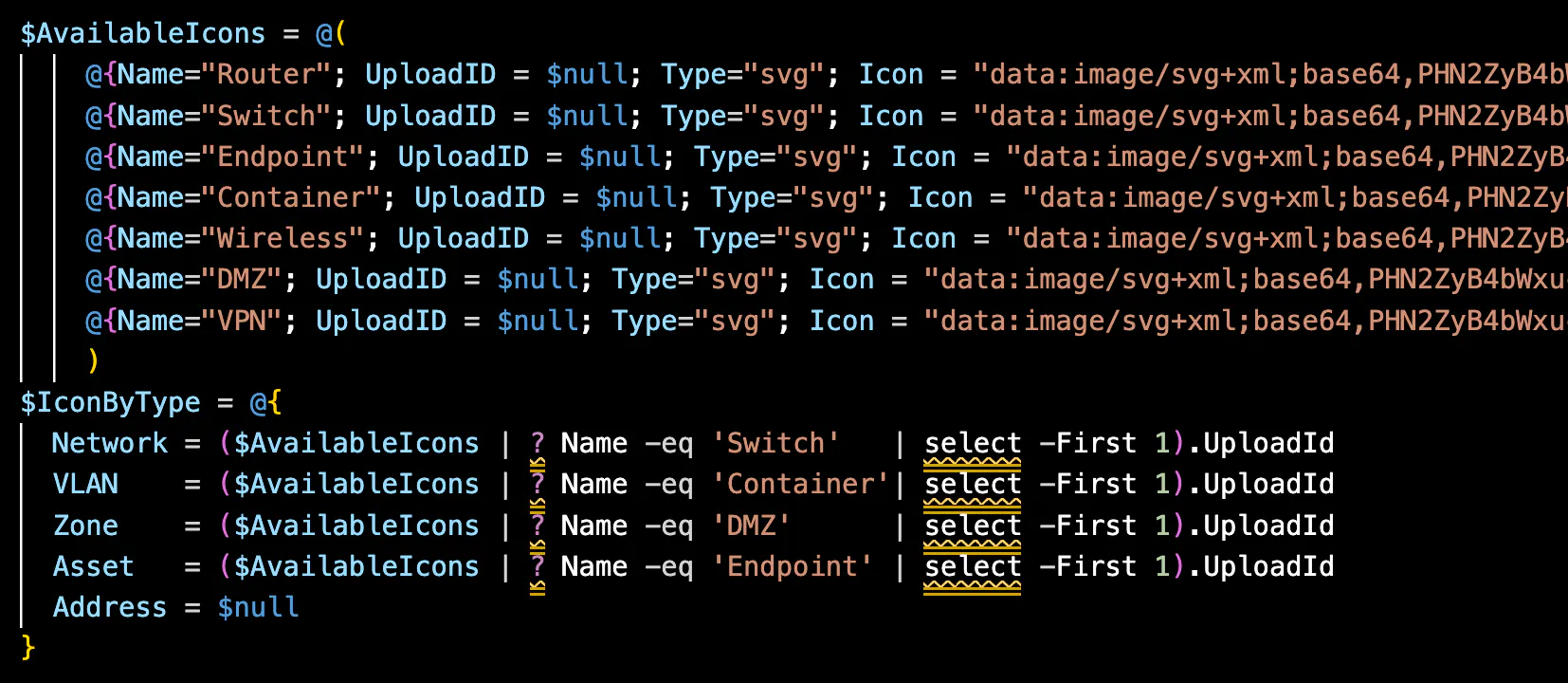
If you want to assign an icon to an entity type that doesn't currently have one, like $Address in above example, you can simply follow the same convention in $IconByType, above, and ensure the Name matches the icon already in Hudu or to-be-updated. To remove an icon from an entity type, you can set it to $null in the $IconByType array. Icons in this table are looked up in Hudu, so whether you specify existing uploaded images or new ones with data in Icon= section, they are only uploaded one time.
💬 Customization + Options - Alternative Status/Role Naming Conventions
If you are using alternative list item names for your Network Roles or your Network/Address Statuses, you can simply update the name of each status type here (left-side in below example)
You can reference a color from the colors definitions or just define a hexadecimal color directly.
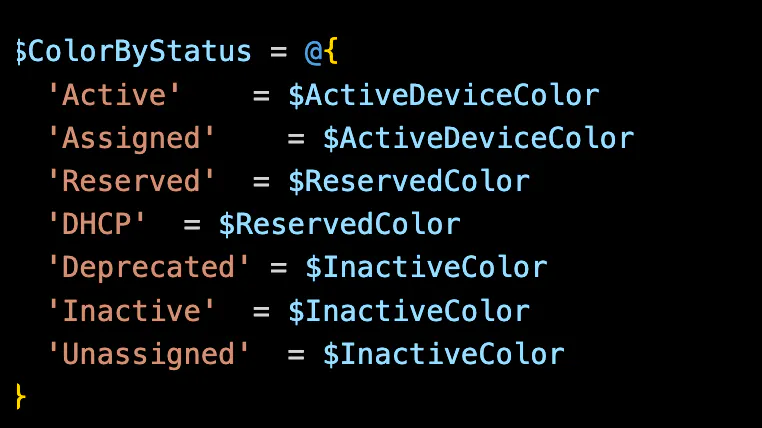
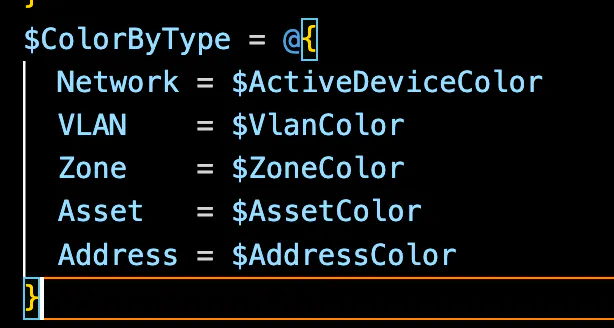
You can also change the card color for each individual entity in the same way, in this other map/hashtable, $ColorByType.