


Overview
This script automatically creates Magic Dash tiles in Hudu based on your integration assets. It currently supports 11 different integrations and can count devices, locations, contacts, and assets from various RMM/PSA platforms.
Now Available in Community GitHub Repo
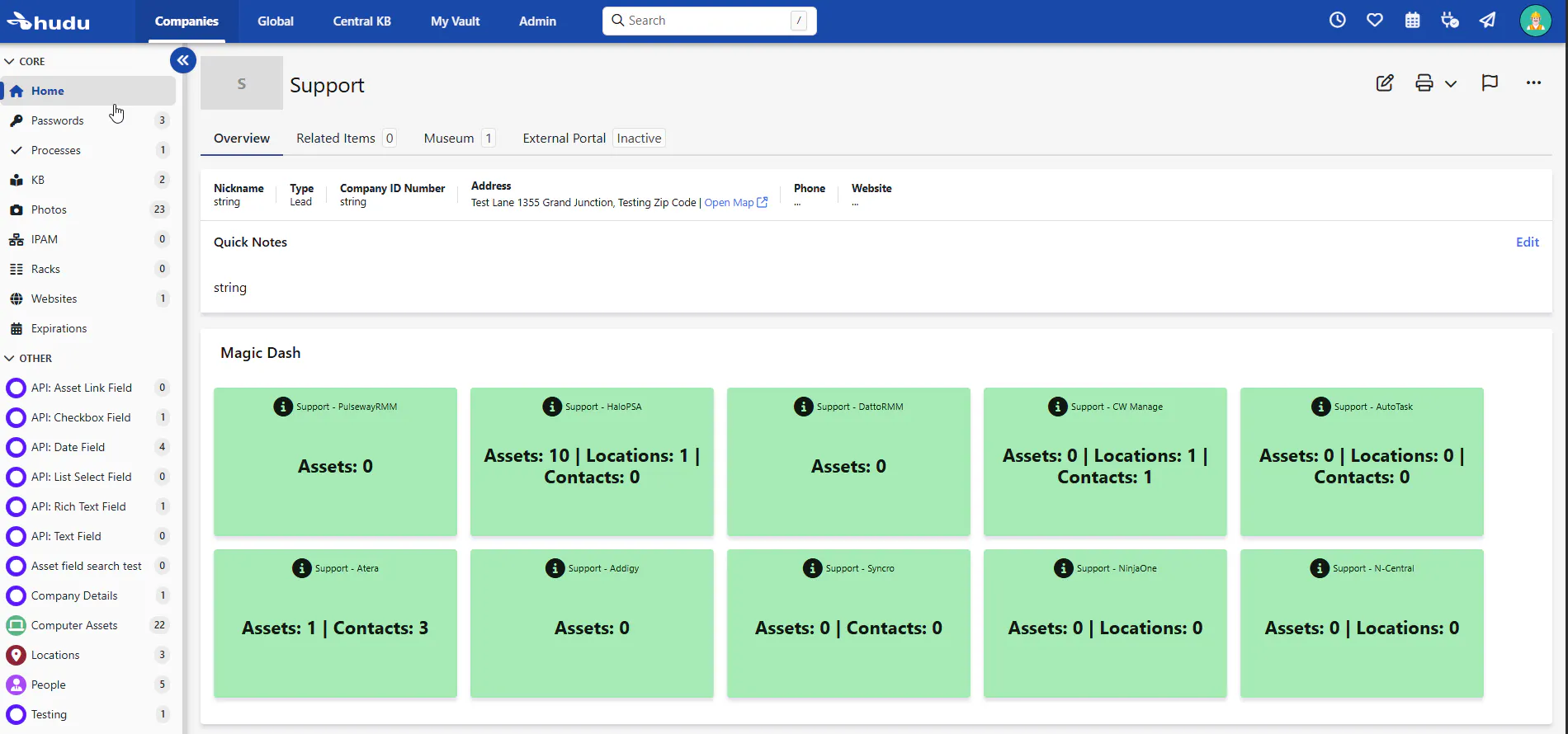
What You’ll Get:
Once set up correctly, the script will:
Automatically count integration assets.
Create and update Magic Dash tiles.
Support both automation and custom messages.
Skip companies gracefully if something’s missing.
Your Magic Dash will show live counts for all integrations with almost no manual work.
You can choose not to use the automation part, and fill out custom data to be pushed to magic dash tiles via Hudu's API. Please note integration Asset are counted as a WHOLE, not the individual cards. Meaning that if you have 3 cards from one integration or more in one Asset, this will show up in the magic dash as one Asset counted. If you are using Connected Fields, please ensure these are setup properly as duplicate Assets may cause miscounting.
📋 What You Need Before You Start:
PowerShell 7 or later
Hudu Version 2.39.3 or later
Azure PowerShell module (Install-Module Az)
HuduAPI PowerShell module (Install-Module HuduAPI)
Entra ID (Azure AD) account with access to Key Vault
Hudu instance with API access
🔐 Step 1 – Set Up Azure Key Vault
We use Azure Key Vault to securely store your Hudu API key and base domain.
Create a Key Vault
Go to Azure Portal
Search for “Key Vaults” and click Create.
Fill in the following:
Subscription: Your Azure subscription
Resource Group: Create new or use existing
Key Vault name: Example My-Key-Vault-Name
Region: Choose your region
Pricing tier: Standard
Click Review + Create → Create.
Add Secrets
Inside the Key Vault go to Secrets → Generate/Import and add two secrets:
Secret 1: HuduAPIKey
Name: HuduAPIKey
Value: Your Hudu API key (Hudu → Admin → API Keys)
Content Type: text/plain
Choose an expiry date or leave it to never expire.
Secret 2: HuduBaseDomain
Name: HuduBaseDomain
Value: Your Hudu base URL (e.g., https://yourcompany.hudu.io)
No trailing slash!
Content Type: text/plain
Choose an expiry date or leave it to never expire.
Give Yourself Permission
Key Vault → Access policies → Add Access Policy.
Pick your user account.
Under Secret permissions select Get and List.
Click Add then Save.
⚙️ Step 2 – Configure the Script
Open test_magic_dash.ps1 in a text editor.
On line 51 you’ll see:
$VaultName = "My-Key-Vault-Name-Here"
Replace "My-Key-Vault-Name-Here" with the name of your Key Vault.
🏗️ Step 3 – Create the Asset Layout in Hudu
In Hudu go to Admin → Asset Layouts → New Asset Layout.
Name it Company Details (this name is required).
Pick any icon and color.
Click Create.
Step 4 – Add the Required Fields
Every integration needs its own set of fields in the Company Details layout. You only have to add the fields for the integrations you actually use.
Base Fields (all integrations need these):
Custom Fields:ENABLED (CheckBox) – switches between custom and automation mode.
IncludeArchivedAssets:ENABLED (CheckBox) – whether to include archived assets in the count.
Field Types:
CheckBox for any :ENABLED field.
Text for :URL, :NOTE and all :Count fields.
Field Naming:
Use exactly the names below (case-sensitive).
Format: ServiceName:FieldName.
Field Reference by Integration (ENABLED → URL → NOTE → Counts)
HaloPSA
HaloPSA:ENABLED (CheckBox)
HaloPSA:URL (Text)
HaloPSA:NOTE (Text)
HaloPSA:DeviceCount (Text)
HaloPSA:ContactCount (Text)
DattoRMM
DattoRMM:ENABLED (CheckBox)
DattoRMM:URL (Text)
DattoRMM:NOTE (Text)
DattoRMM:DeviceCount (Text)
CW Manage
CW Manage:ENABLED (CheckBox)
CW Manage:URL (Text)
CW Manage:NOTE (Text)
CW Manage:ConfigurationCount (Text)
CW Manage:LocationCount (Text)
CW Manage:ContactCount (Text)
AutoTask
AutoTask:ENABLED (CheckBox)
AutoTask:URL (Text)
AutoTask:NOTE (Text)
AutoTask:DeviceCount (Text)
AutoTask:LocationCount (Text)
AutoTask:ContactCount (Text)
Atera
Atera:ENABLED (CheckBox)
Atera:URL (Text)
Atera:NOTE (Text)
Atera:DeviceCount (Text)
Atera:ContactCount (Text)
Addigy
Addigy:ENABLED (CheckBox)
Addigy:URL (Text)
Addigy:NOTE (Text)
Addigy:DeviceCount (Text)
Syncro
Syncro:ENABLED (CheckBox)
Syncro:URL (Text)
Syncro:NOTE (Text)
Syncro:DeviceCount (Text)
Syncro:ContactCount (Text)
NinjaOne
NinjaOne:ENABLED (CheckBox)
NinjaOne:URL (Text)
NinjaOne:NOTE (Text)
NinjaOne:DeviceCount (Text)
NinjaOne:LocationCount (Text)
N-Central
N-Central:ENABLED (CheckBox)
N-Central:URL (Text)
N-Central:NOTE (Text)
N-Central:DeviceCount (Text)
N-Central:LocationCount (Text)
PulsewayRMM
PulsewayRMM:ENABLED (CheckBox)
PulsewayRMM:URL (Text)
PulsewayRMM:NOTE (Text)
PulsewayRMM:AssetCount (Text)
Step 5 – Create a “Company Details” Asset for Each Company
Open a company in Hudu.
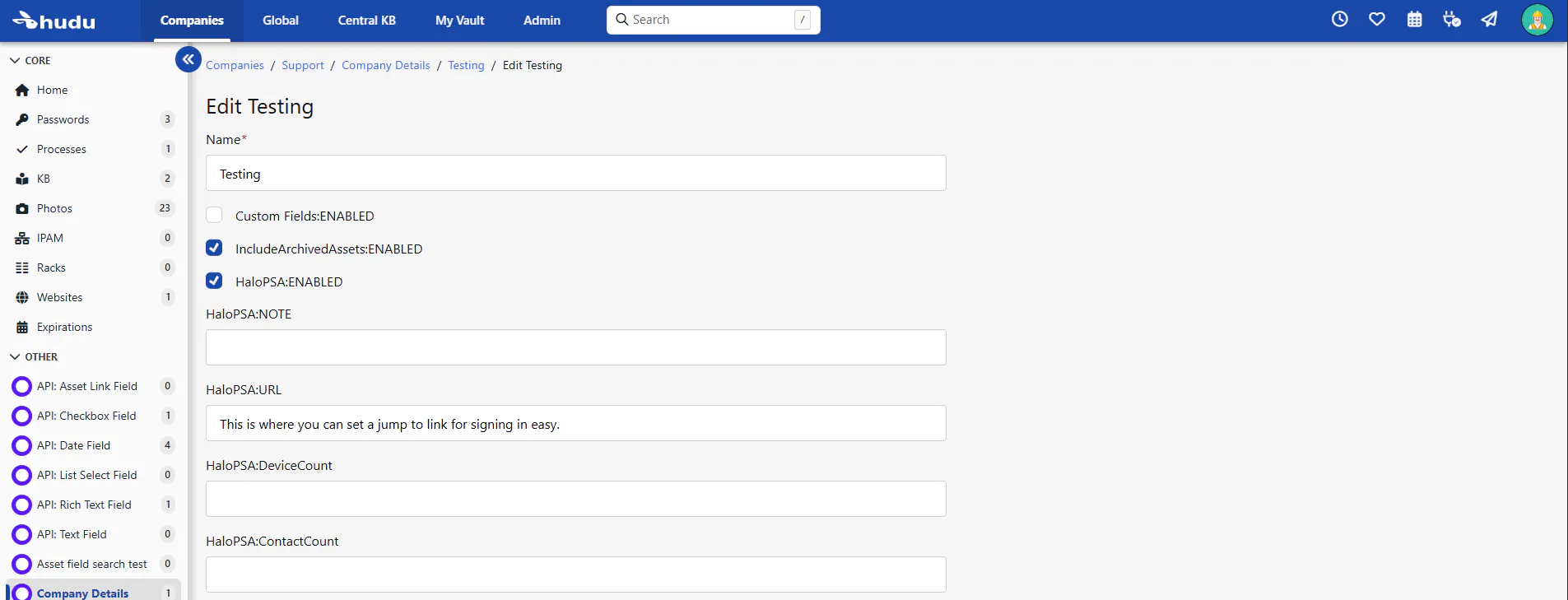
Add a new asset using the Company Details layout.
For each integration you want to track:
Tick ServiceName:ENABLED.
Optionally: fill ServiceName:NOTE (custom message).
Optionally: fill ServiceName:URL (link to integration portal).
Save.
Example of what Custom "Note" would look like:
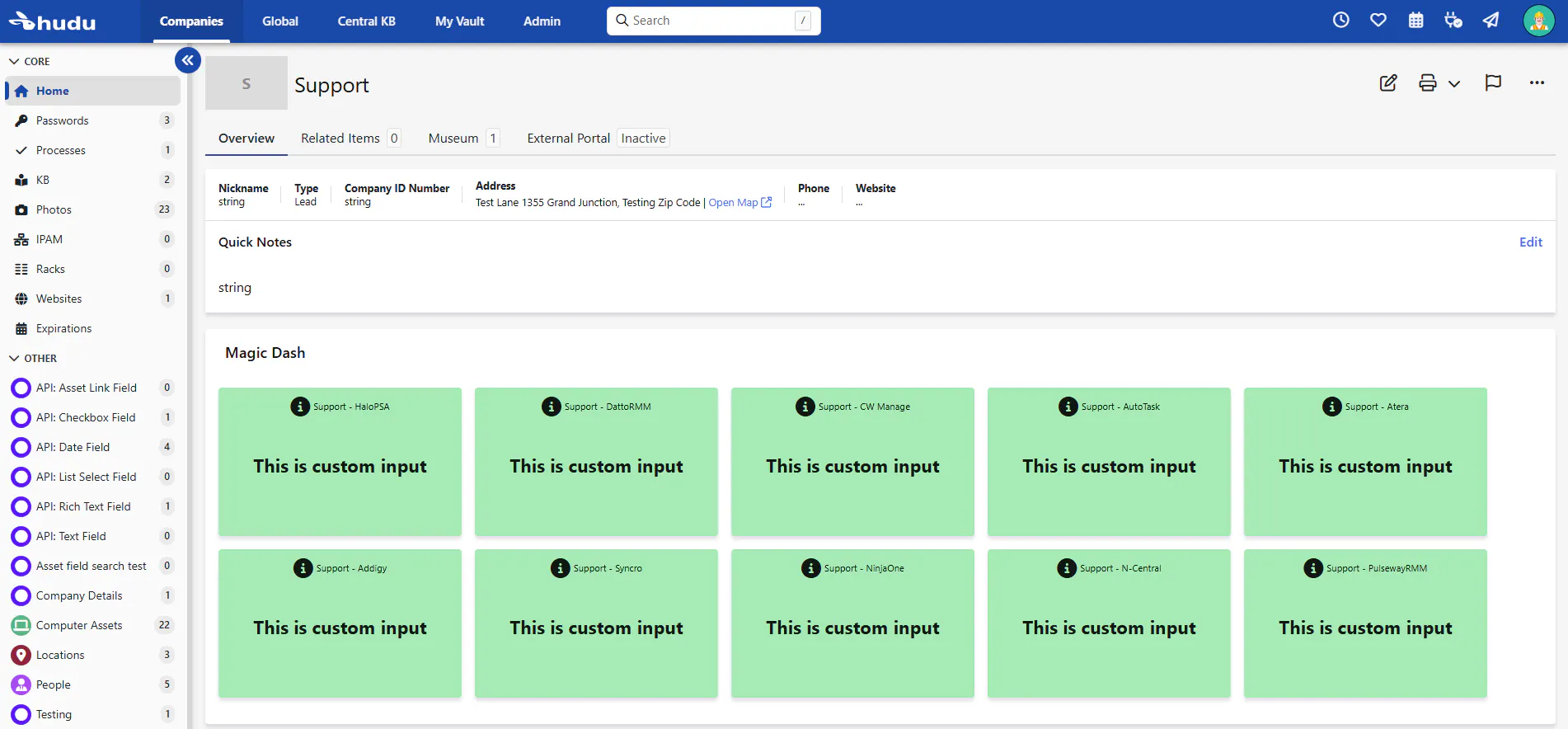
One “Company Details” asset per company is required. If you have zero or multiple, the script will skip that company.
🚀 Step 6 – Run the Script
Open PowerShell 7 (pwsh):
cd "C:\Path\To\Your\Script"
. est_magic_dash.ps1
The script will:
Validate your credentials (3 tries).
Find companies with exactly one “Company Details” asset.
Count assets from each integration.
Update the count fields.
Create Magic Dash tiles for enabled integrations.
Handle custom vs automation mode.
🎛️ Step 7 – Modes
Custom Mode: Custom Fields:ENABLED = True + fill NOTE fields → script uses your custom messages.
Automation Mode: Custom Fields:ENABLED = False + leave NOTE fields empty → script generates messages automatically.
Mixed Mode: Some services custom, others automated.
🔧 Troubleshooting
“Credential validation failed” – Check Key Vault name and secret names; verify permissions.
“No/multiple layout(s) found with name Company Details” – Check layout name and active status.
“Skipping company” – Create exactly one Company Details asset per company.
“Magic Dash tiles not appearing” – Ensure ENABLED fields are checked and integration has assets.
The script prints debug info showing missing fields, counts, and errors.
📞 Need Help?
Double-check field names (they are case-sensitive).
Ensure permissions and integration configuration.
Review debug output.